
ClarityFilter av SolidDevelop
Stay focused online by hiding, blurring, or pixelating articles and images that mention people or topics you don’t want to see.
ExperimentellExperimentell
Tillgänglig på Firefox för Android™Tillgänglig på Firefox för Android™
14 användare14 användare
Metadata för tillägg
Skärmbilder


Om detta tillägg
ClarityFilter helps you stay focused online by filtering out articles, posts, and images that mention people, topics, or teams you’d rather avoid.
Instead of blocking entire sites, it scans page content locally and hides, blurs, or pixelates individual cards and feed items that match your custom terms — so you keep the useful parts of a site and remove only the noise.
Key features
You can change the mode at any time from the popup or Options page.
How it works
Your settings (terms, whitelist, mode, blocked images, PIN state) are stored in browser storage and can sync with your browser account if sync is enabled.
Privacy
Permissions (what they’re used for)
Tips
Instead of blocking entire sites, it scans page content locally and hides, blurs, or pixelates individual cards and feed items that match your custom terms — so you keep the useful parts of a site and remove only the noise.
Key features
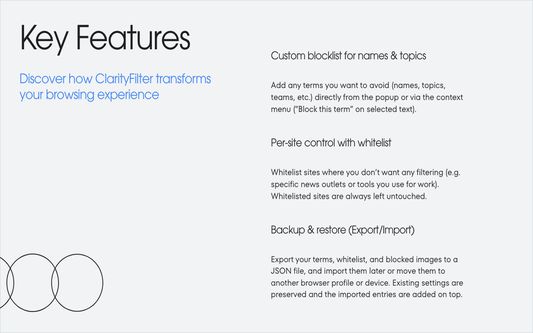
- Custom blocklist for names & topics
Add any terms you want to avoid (names, topics, teams, etc.) directly from the popup or via the context menu (“Block this term” on selected text). - Flexible display modes
Choose what happens when a match is found: - Hide – remove the card completely
- Blur – keep layout intact but blur the content
- Pixelate – overlay a pixelated mask over the card
You can change the mode at any time from the popup or Options page.
- Per-site control with whitelist
Whitelist sites where you don’t want any filtering (e.g. specific news outlets or tools you use for work). Whitelisted sites are always left untouched. - Block specific images
Right-click any image and choose “Block this image” to hide that image everywhere it appears. Manage or clear your blocked image list on the Options page. - PIN protection for changes
Optionally require a PIN to disable filtering, clear terms, or change sensitive settings — useful if you’re trying to protect yourself from doomscrolling, spoilers, or triggering topics. - Backup & restore (Export/Import)
Export your terms, whitelist, and blocked images to a JSON file, and import them later or move them to another browser profile or device. Existing settings are preserved and the imported entries are added on top. - Smart feed & infinite-scroll support
ClarityFilter looks for “card-like” elements (articles, posts, tiles) with headlines and media, and keeps watching for new content on infinite-scroll pages so filtering keeps up as you scroll. - Keyboard shortcut
Use the configurable shortcut (defaultOptions+Shift+Ffor Macbook,Alt+Shift+Ffor Windows) to toggle ClarityFilter on or off quickly.
How it works
- When a page loads, ClarityFilter reads visible text in article cards and feed items in your browser.
- If any of your terms match, the surrounding card is hidden, blurred, or pixelated, depending on your chosen mode.
- On infinite-scroll or single-page apps, new content is scanned automatically as it appears.
- You can pause or resume filtering from the toolbar popup or with the keyboard shortcut.
Your settings (terms, whitelist, mode, blocked images, PIN state) are stored in browser storage and can sync with your browser account if sync is enabled.
Privacy
- No analytics, no ads, no tracking.
- The extension does not send your terms or page content to any server. All filtering happens locally in your browser.
- Your data lives in your browser’s storage and may sync only with your own browser account if you’ve enabled sync.
Permissions (what they’re used for)
- “Access your data for all websites” – to read visible text and image URLs on pages locally and decide which cards/images to hide, blur, or pixelate. No data leaves your device.
- Storage – to save your terms, whitelist, mode, blocked images, and PIN settings.
- Tabs – to rescan the active tab and keep the popup in sync with the page.
- Context menus – to add “Block this term” and “Block this image” to the right-click menu.
Tips
- If you don’t see anything change after adding terms, refresh the page once.
- Use the whitelist for sites where you need the full picture (e.g. work dashboards, research tools).
- For extra friction against turning it off impulsively, enable PIN protection in the Options page.
Betyg 5 av 2 recensenter
Behörigheter och data
Nödvändiga behörigheter:
- Åtkomst till webbläsarens flikar
- Åtkomst till dina data för alla webbplatser
Datainsamling:
- Utvecklaren säger att detta tillägg inte kräver datainsamling.
Mer information
- Länkar för tillägg
- Version
- 0.4.3
- Storlek
- 102,44 kB
- Senast uppdaterad
- för 14 dagar sedan (25 nov 2025)
- Relaterade kategorier
- Licens
- MIT-licens
- Sekretesspolicy
- Läs sekretesspolicyn för detta tillägg
- Versionshistorik
- Taggar
- Lägg till i samling